Best Internet for Working From Home in 2026 – Speed, Reliability & Hardware Guide
The best internet for working from home is a dedicated fiber-optic connection with symmetrical speeds of at least 300 Mbps, latency under 20 ms, and unlimited data. Fiber-optic outperforms cable, 5G, and satellite by delivering stable video conferencing, fast cloud backups, and consistent performance even during peak household usage hours.
Dropped Zoom calls. A file upload that stalls at 99%. A VPN that disconnects right before a client presentation. For remote workers, these aren’t just technical glitches they translate directly into missed deadlines, damaged professional credibility, and lost billable hours.
The problem usually isn’t raw speed. Internet Service Providers (ISPs) aggressively market eye-catching download figures like “1 Gig Internet!” while burying a critical weakness in the fine print: upload speeds that can’t handle the demands of modern remote work. At My Neighborhood Wifi, we help remote workers cut through marketing hype and evaluate their home internet setup across bandwidth allocation, hardware placement, and network redundancy.
This guide covers everything you need: recommended speeds by work profile, a full comparison of fiber vs. cable vs. 5G vs. satellite, the truth about upload speed, Wi-Fi optimization tactics, and backup strategies to protect against outages.
What Are the Recommended Internet Speeds for Remote Work in 2026?
Speed requirements vary considerably depending on what your workday actually looks like. To find the right plan, separate two distinct metrics: download speed (receiving data, such as loading a webpage or streaming a video) and upload speed (sending data, such as sharing your screen or transferring large project files to cloud storage).
| Remote Work Profile | Min. Download | Min. Upload | Ideal Latency | Best Connection Type |
| Basic Administration (email, Slack, web browsing) | 50 Mbps | 10 Mbps | Under 50 ms | Cable, 5G Home, Fiber |
| Standard Professional (daily HD video calls, cloud docs) | 300 Mbps | 300 Mbps | Under 20 ms | Fiber Optic |
| Power User / Creative (4K editing, large CAD or dev files) | 500–1,000 Mbps | 500–1,000 Mbps | Under 15 ms | Dedicated Fiber Optic |
| Multi-User Household (2+ remote workers, smart home devices) | 1,000 Mbps | 1,000 Mbps | Under 15 ms | Mesh-Equipped Fiber |
A key takeaway from this table: as soon as your work involves live video collaboration, cloud syncing, or large file transfers, symmetrical upload speed stops being optional. It becomes the deciding factor between a smooth workday and a frustrating one.
Fiber vs. Cable vs. 5G vs. Satellite: Which Internet Connection Wins for Remote Work?
Not all megabits behave the same way. The underlying technology delivering internet to your home office directly determines connection stability during critical work hours.
| Connection Type | Speed Symmetry | Typical Latency | Weather Reliability | Remote Work Suitability |
| Fiber-Optic | 100% Symmetrical | 5–15 ms | Excellent | Tier 1 (Gold Standard) |
| Cable (DOCSIS 3.1) | Asymmetrical (low upload) | 20–50 ms | Good | Tier 2 (Sufficient) |
| 5G Home Internet | Highly Variable | 30–70 ms | Moderate | Tier 3 (Budget / Backup) |
| Satellite (LEO/GEO) | Asymmetrical | 40–600+ ms | Poor | Tier 4 (Rural Emergency Only) |
Fiber-Optic transmits data as pulses of light through glass or plastic cables, which is why latency sits between 5 and 15 ms and symmetrical gigabit speeds are achievable. It remains the gold standard for home office setups.
Cable (DOCSIS 3.1) can reach 1,000 Mbps download, making it a viable fallback. The core limitation: upload speeds are typically capped at 35 Mbps, a figure that becomes a real bottleneck during active video calls and cloud workflows.
5G Home Internet offers a convenient no-installation option, but speeds fluctuate based on tower congestion, building materials, and local obstructions. It works well as a secondary failover connection, not a primary one.
Satellite (GEO) carries latency above 600 ms, making real-time communication tools like Microsoft Teams or Zoom nearly unusable. Low Earth Orbit (LEO) satellite services like Starlink have reduced latency to roughly 40–80 ms, a meaningful improvement, but still unsuitable for professionals who rely on jitter-free video calls daily.
Why Upload Speed Matters More Than Download Speed for Zoom and Microsoft Teams
Most cable providers advertise a plan as “1,000 Mbps,” which sounds impressive. What that figure omits: uploads are capped at just 35 Mbps on most standard cable tiers. That gap creates a real-world performance problem that no amount of download bandwidth can fix.
Here’s what each configuration actually looks like during a typical remote workday:
Problematic setup (asymmetrical cable):Advertised speeds of 1,000 Mbps download and 35 Mbps upload. During an active file upload to Google Drive or OneDrive, that 35 Mbps pipe saturates instantly. The result: video freezes on Microsoft Teams, audio cuts out, and VPN connections drop due to upload packet loss.
Check Internet Availability & Pricing
Enter your details below to see all high-speed fiber, cable, and 5G internet providers available in your neighborhood.
Reliable setup (symmetrical fiber):Advertised speeds of 500 Mbps download and 500 Mbps upload. The same file upload happens simultaneously with 60fps screen sharing, instant cloud syncing, and zero audio distortion.
According to network performance research, maintaining latency under 20 ms with zero packet loss delivers more measurable benefit for real-time communication tools than raw download bandwidth above 500 Mbps. Upload symmetry and low latency are the two metrics worth prioritizing first.
How Do You Optimize Your Home Wi-Fi Setup for Zero Connection Drops?
A gigabit fiber connection entering your home means little if your router cannot distribute that bandwidth efficiently to your workspace. Four hardware and configuration changes make a measurable difference.
1. Connect via Ethernet Instead of Wi-Fi
Running a Cat6 or Cat6a Ethernet cable directly from your router to your computer or laptop dock eliminates the single largest source of home office connectivity problems. A wired connection removes environmental Wi-Fi interference, reduces localized latency spikes, and virtually eliminates packet loss caused by signal obstruction.
2. Optimize Router Placement
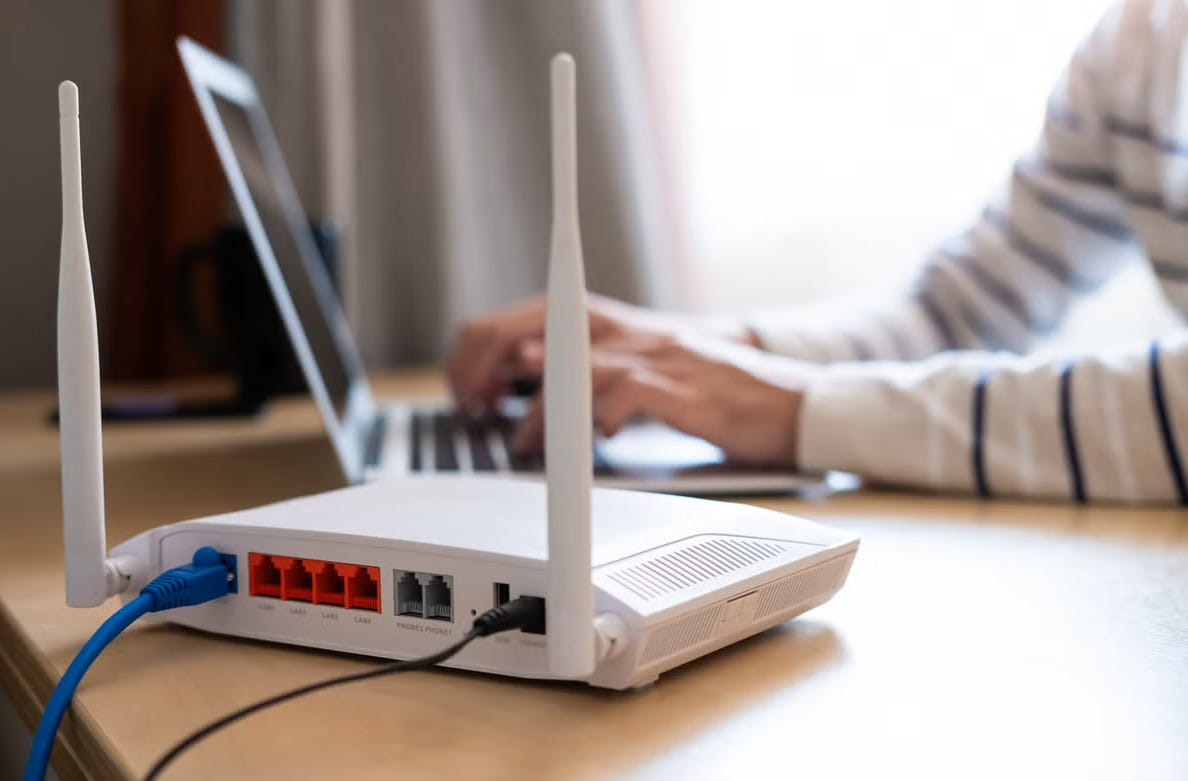
When a wired connection is not feasible, router position matters significantly. Elevate a Wi-Fi 6E or Wi-Fi 7 router off the floor, away from concrete walls, metal appliances, and 2.4 GHz interference sources such as microwaves or Bluetooth hubs. A centrally located router at mid-wall height consistently outperforms one tucked into a corner cabinet.
3. Deploy a Tri-Band Mesh Wi-Fi System for Multi-Story Homes
A single router struggles to maintain throughput across multiple floors or rooms separated by dense building materials. A tri-band mesh Wi-Fi network with a dedicated wireless backhaul channel keeps performance high across the entire home without the dead zones that plague traditional router and extender setups.
4. Configure Quality of Service (QoS) Rules
Log into your router’s admin panel and enable Quality of Service (QoS) settings. Tag your work laptop’s MAC address as the highest-priority device on the network. This ensures your video calls and cloud workflows receive bandwidth preferentially over streaming televisions or gaming consoles during peak household usage hours.
What Backup Internet Strategies Protect Remote Workers Against Outages?
A single ISP connection leaves your workday vulnerable to neighborhood infrastructure cuts, local power failures, and unplanned provider outages. Professionals whose income depends on reliable connectivity should build a layered redundancy system.
Secondary 5G Failover: Pair your primary fiber or cable connection with a dedicated 5G Home Internet plan or a mobile hotspot router. When the primary line goes down, a 5G backup handles email, messaging, and light video calling with minimal interruption.
Dual-WAN Load-Balancing Router: A small business dual-WAN router automatically switches traffic to the backup connection within approximately three seconds of detecting a primary line failure. Most users never notice the transition.
Uninterruptible Power Supply (UPS): Plug both your optical network terminal (ONT) or modem and your primary router into a battery backup UPS rated at 800VA or higher. This keeps your Wi-Fi running during localized electrical outages that would otherwise leave you completely offline.
Choosing the Right Home Internet Provider: Final Recommendation
Securing the best internet for working from home comes down to three non-negotiables: symmetrical speeds, low latency and hardware that can actually distribute your connection cleanly to your workspace.
Prioritize a fiber-optic provider in your area first. If fiber-optic service is unavailable at your address, secure a high-speed cable plan paired with your own Wi-Fi 6 or Wi-Fi 7 router and a direct Ethernet connection to your workstation. Add a 5G failover plan for outage protection, and configure QoS rules to prioritize work traffic across the household.
Ready to find the right plan for your address? Use My Neighborhood Wifi local ISP coverage tool to compare top fiber, cable and 5G providers side by side.
Frequently Asked Questions
Is 100 Mbps fast enough to work from home?
Yes. 100 Mbps supports a single remote worker handling standard web tasks, email, and HD video calls without issues. If multiple people in the same household are streaming, gaming, or uploading large files at the same time, upgrading to at least 300 Mbps symmetrical service is recommended to prevent congestion.
Does a VPN slow down your internet speed when working from home?
Yes. A Virtual Private Network (VPN) typically reduces internet speeds by 10% to 30%, depending on the VPN provider and the distance to the enterprise server being routed through. Starting with a higher base speed, particularly on a symmetrical fiber plan, minimizes the practical impact of VPN overhead on day-to-day performance.
How much data does working from home use per month?
An average remote worker consumes between 300 GB and 700 GB of data per month. Roles involving heavy cloud backups, 4K screen sharing, or large dataset downloads can exceed 1 TB monthly. Unlimited data plans eliminate the risk of surprise overage fees or ISP throttling during high-usage billing periods.
Should I buy my own router or rent one from my ISP?
Buying your own router is the better long-term decision. ISP-provided gateway units typically lack advanced QoS controls, offer limited configuration options, and cost between $10 and $15 per month in rental fees. A quality aftermarket router pays for itself within a year and delivers meaningfully better performance for home office setups.
What is the minimum latency required for reliable Zoom or Microsoft Teams calls?
Latency under 20 ms provides jitter-free real-time communication on tools like Zoom and Microsoft Teams. Latency between 20 and 50 ms is generally acceptable for most calls. Above 50 ms, audio and video quality begin to degrade noticeably, particularly during screen-sharing sessions or multi-participant calls.
“Most inquiries are answered within the same day”

Written by Sam jaffer
Content writer and tech enthusiast sharing insights on internet connectivity.