Posts tagged: who are the best internet providers

Upgrade from DSL to Fiber Made Easy in 2025 🚀
For years, DSL was the go-to option for many households needing internet access. But in 2025, with more people streaming, working from home, and connecting countless smart devices, it’s clear that upgrading from DSL to fiber is one of the best moves you can make for faster, more reliable internet. The transition may sound intimidating, but don’t worry—we’ll walk through it step by step, so upgrading becomes as smooth as plugging in your favorite device.
Why Leave DSL Behind in 2025?
DSL (Digital Subscriber Line) connects to the internet using your existing phone line. It served us well for years but was never built for today’s demands. Here’s why fiber has taken the crown.
- Speed: DSL caps out at much lower speeds, while fiber delivers lightning-fast gigabit connections.
- Consistency: Fiber isn’t as affected by distance from the provider’s network.
- Future-proof: Fiber networks are designed to handle today’s heavy streaming, gaming, and business needs without frequent slowdowns.
- Lower latency: Ideal for video calls, online gaming, and real-time collaboration.
How Does Fiber Internet Work?
Unlike DSL, which transfers data through copper phone lines, fiber internet uses strands of glass or plastic to transmit information using light. This allows data to travel at the speed of, you guessed it—light. You can think of fiber as building a digital highway that doesn’t get bogged down by high traffic like older networks do. Curious about the science? Check out this Wikipedia guide on fiber-optic communication.
The Benefits of Switching from DSL to Fiber
For Families
Streaming movies, playing online games, and hosting video calls all at once? No problem with fiber. Multiple devices can stay connected without that dreaded buffering circle.
For Remote Workers
With so much remote work in 2025, fiber’s upload speeds shine. Uploading large files or running meetings on platforms like Zoom is seamless compared to DSL.
For Gamers
If milliseconds make the difference in your gameplay, fiber’s low latency keeps you ahead of the competition.
For Smart Homes
From smart thermostats to security cameras, a fiber network ensures your entire home ecosystem runs smoothly and securely.
Step-by-Step: How to Upgrade from DSL to Fiber
Switching doesn’t have to be complicated. Here’s the process broken down:
1. Check Fiber Availability
The first step is seeing if fiber is available in your neighborhood. Many areas in 2025 are rolling out fiber faster than ever. Community forums and local groups on places like Reddit can be a great place to learn if neighbors already have access.
2. Contact a Local Provider
Reach out to a provider offering fiber plans in your area. Each provider may offer different packages based on speed, contract terms, and installation costs.
3. Prepare for Installation
- A technician will typically run a fiber optic line from the main street to your home.
- They’ll install an Optical Network Terminal (ONT), which converts the fiber signal into usable internet inside your home.
- You’ll connect your WiFi router to the ONT, just like you did with DSL but faster.
4. Test Your New Connection
Once setup is complete, run a speed test and enjoy the upgrade. You’ll immediately notice the difference—websites load instantly, and streaming quality reaches 4K or even 8K without drops.
5. Cancel Your DSL Plan
Once fiber is successfully working, cancel your DSL account to avoid paying for two services.
Common Questions about Upgrading to Fiber
Is Fiber More Expensive?
Prices have dropped considerably by 2025. In many cases, fiber plans cost the same—or even less—than traditional DSL or cable. The value comes from the speed and reliability you get.
Do I Need a Special Router?
Most modern WiFi routers are compatible with fiber. However, if you’ve been using an older DSL modem/router combo, you’ll want to upgrade to a fiber-ready router. Tech enthusiasts on Quora often discuss the best router models for fiber.
What If Fiber Isn’t Available Yet?
If your neighborhood doesn’t have fiber, stay in touch with your local community board or follow city updates on Facebook pages. Cities often publish fiber expansion plans so you’ll know when it’s coming to your street.
How Fiber Changes Everyday Life
Entertainment
No longer do you need to choose between streaming in one room while someone else plays an online game in another. Fiber handles multiple streams simultaneously.
Work-life Balance
Remote workers with reliable connections report less stress and more productive workdays. Smooth video calls mean fewer misunderstandings and frustrations.
Digital Learning
Students benefit from uninterrupted lessons and seamless access to online resources—critical in a world where e-learning continues to grow.
Community Growth
Neighborhoods with fiber often attract more businesses, startups, and even increase property value. Better infrastructure means stronger community development.
DSL vs Fiber: A Quick Comparison
| Feature | DSL | Fiber |
|---|---|---|
| Speed | Up to ~100 Mbps (varies) | Up to 1 Gbps and beyond |
| Reliability | Affected by distance & network traffic | Consistent & stable |
| Latency | Higher, not great for gaming | Low latency, perfect for gaming/video calls |
| Best for | Light browsing, small households | Streaming, gaming, work-from-home, smart homes |
Final Thoughts: Future-Proof Your Internet
Upgrading from DSL to fiber in 2025 isn’t just about faster internet—it’s about preparing your home for the future. With more devices, more digital demands, and more opportunities online, fiber ensures your household never lags behind. Whether you’re a gamer, a remote worker, or running a smart home, fiber provides the foundation for a connected, reliable digital lifestyle.
If you have neighbors already making the switch, hop on a community discussion on Yelp or Reddit discussions to see their experiences. Sometimes, the best insight comes from those who’ve just completed the move. 🚀

Internet for SNAP Recipients in Romulus, MI
Finding affordable and reliable internet can be life-changing, especially for families using SNAP in Romulus, MI. Internet plays a huge role in education, healthcare, staying connected, and even applying for jobs. The good news is, several providers and programs are available in Romulus, MI, that make internet more accessible and budget-friendly. This guide walks you through your options and shows you how to stay connected without breaking your wallet.
Why Internet Access Matters for SNAP Recipients
For families and individuals in Romulus, MI, internet access is no longer a luxury. It’s a necessity in daily life. Whether you’re checking benefits, applying for jobs, or letting kids attend school online, not having internet creates unnecessary barriers.
Some key reasons why affordable internet is so important:
- Helps children with homework and online learning
- Keeps families connected with healthcare information and telehealth
- Enables job searching and remote work opportunities
- Provides access to online SNAP account management
Internet Providers in Romulus, MI
Romulus, MI has access to several well-known internet providers. Each has different plans, speeds, and prices. If you’re a SNAP recipient, you may qualify for discounts or government-supported programs.
| Provider | Connection Type | Top Speed | Starting Price |
|---|---|---|---|
| Spectrum | Cable | Up to 1,000 Mbps | $70/mo for 1 year |
| Xfinity | Cable | Up to 1,200 Mbps | Varies by plan |
| AT&T | Fiber / DSL | Up to 5 Gbps in select areas | Varies by plan |
| T-Mobile | 5G Home Internet | Up to 245 Mbps | Flat monthly rate |
Most households find that 100 Mbps to 500 Mbps is enough for smooth streaming, online learning, and video calls. But if you have multiple devices or gamers, a faster 1 Gig plan could be helpful.
Discount Programs for SNAP Recipients
SNAP recipients living in Romulus, MI may qualify for special internet discount programs. These can reduce monthly bills and sometimes even eliminate costs.
Lifeline Program
- Provides a discount of up to $9.25 on monthly internet bills
- Can be used for landline or wireless services
- Eligibility includes SNAP participation
Affordable Connectivity Programs
- Available to households enrolled in SNAP
- Can offer up to $30/month off your internet bill
- Some providers even offer no-cost plans when paired with this discount
Provider-Based Discount Programs
In Romulus, MI, several major internet providers offer low-cost plans for qualified households:
- Spectrum Internet Advantage – Internet plans starting at $10/month for qualified households, with speeds up to 100 Mbps
- Xfinity Internet Essentials – Low-cost plans for families with children in the National School Lunch Program, SNAP recipients, and more
- AT&T Access – Special plan for SNAP participants with affordable monthly pricing
Steps to Apply for Discounted Internet
If you’re a SNAP recipient in Romulus, MI, getting connected is easier than you think. Here’s how:
- Check your eligibility – Make sure you have proof of SNAP participation (benefit letter or card)
- Choose your provider – Compare Spectrum, Xfinity, AT&T, or T-Mobile options available at your address
- Apply for the program – Fill out online or phone applications with providers
- Provide documentation – Upload or show proof of eligibility (SNAP, Medicaid card, etc.)
- Start saving – Once approved, you’ll get discounted rates on your internet bill
How SNAP and Internet Access Work Together
Managing SNAP benefits is much easier online. The Michigan Bridge Card system lets recipients log in, check balances, and find stores that accept EBT. Without internet access, this process becomes harder and sometimes requires in-person visits or phone calls.
Here’s how internet helps with SNAP benefits:
- Check EBT card balances online instead of calling hotlines
- Access online grocery shopping with eligible EBT acceptance
- Stay informed on policy changes or additional assistance programs
- Connect to community programs like local food pantries or resource centers
Common Questions About Internet for SNAP Recipients
Can I combine programs like Lifeline and Affordable Connectivity?
Yes, you can. Many people use Lifeline for discounted cell service and ACP for home internet service. That way, you maximize benefits and save more monthly.
Do I need to reapply each year?
Yes, many programs like Lifeline require annual recertification to maintain your discount. Keep your documents handy and respond to reminders from your provider.
What documents do I need?
- SNAP or EBT card
- Official benefit award letter
- Photo ID and proof of address
Tips to Make the Most of Your Internet
- Use Wi-Fi instead of cellular data whenever possible to avoid extra fees
- Set up parental controls for safe online use by children
- Check your speeds with free tools like YouTube tutorials for “internet speed test”
- Use public resources like your local library for free hotspot lending when needed
Community Support in Romulus, MI
Beyond internet programs, local food pantries and community centers in Romulus, MI also help support families with meals, household needs, and referrals to digital resources. Staying connected allows households to locate and apply for these resources quickly.
Final Thoughts
Affordable and reliable internet is within reach for SNAP families in Romulus, MI. Between programs like Lifeline, Affordable Connectivity, and provider initiatives such as Spectrum Internet Advantage or AT&T Access, no family should feel left behind. If you qualify for SNAP, take the next step and apply for one of these services. It could mean faster job searches, smoother online school days, and a stronger connection to your community.
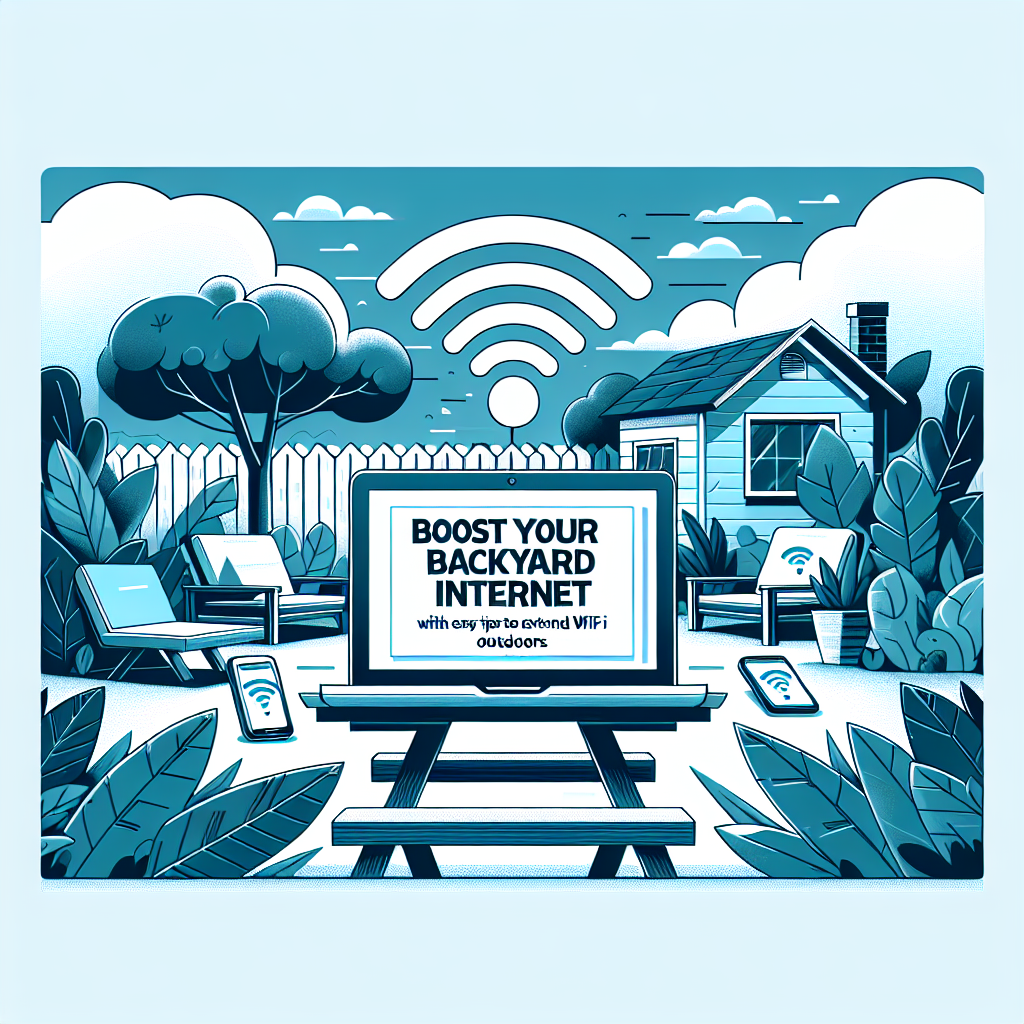
Boost Your Backyard Internet with Easy Tips to Extend Wi-Fi Outdoors
Want to enjoy smooth streaming, video calls, or music while relaxing outside? The good news is that you don’t need expensive equipment to get better backyard internet. With just a few smart changes, you can boost your backyard Wi-Fi so it reaches further, feels faster, and works more consistently outside.
Why Backyard Wi-Fi Matters
Backyards are no longer just spaces for grilling. They’ve become outdoor offices, gyms, play zones, and mini theaters. Whether you’re hosting friends, playing smart yard games, or working under the sun, strong Wi-Fi is essential. Without it, you’ll face:
- Slow or freezing video calls
- Music apps that keep buffering
- Smart garden devices disconnecting
- Inconsistent speeds depending on where you sit
Thankfully, there are easy ways to extend coverage outside without breaking the bank.
Check the Source First
Before buying new gadgets, check if the issue is inside your home. Many connectivity problems start at the source — the modem or router. Some common issues include old firmware, interference from walls, or outdated hardware, as explained in guides like speednetlte.com. A quick check-up often makes a noticeable difference outdoors too.
Quick router health checklist:
- Reboot your router once in a while to refresh connections
- Install available firmware updates to fix bugs
- Move the router closer to the side of your house facing the backyard
- Avoid placing it in a corner, basement, or behind too many walls
Upgrade Your Router
A modern Wi-Fi router makes a world of difference. Older models struggle with multi-device connections and longer ranges. If your router is more than five years old, consider an upgrade. According to yestechie.com, choosing a router with Wi-Fi 6 or Wi-Fi 6E ensures better speed and outdoor reach. And with Wi-Fi 7 rolling out, even faster outdoor speeds are on the horizon, as noted by NAR Realtor Tech Guide.
Router placement tip:
If possible, place your router near a window or wall that faces your backyard. Wi-Fi signals weaken when they pass through multiple solid surfaces like brick or stone. Positioning matters even more than power.
Add a Wi-Fi Extender
Sometimes, even the best router can’t cover the outside area completely. A Wi-Fi extender is a small plug-in device that boosts the signal. It doesn’t require major setup, and you can often just plug it into a wall outlet near the yard. As explained on cascable.com, extenders help fill in weak spots and are especially helpful in wide backyards or multi-story homes.
How to choose an extender:
- Pick one compatible with your router brand for smoother setup
- Place it midway between your router and the backyard area
- Avoid plugging it in too far away — it needs a good source signal to share
Consider a Mesh System
If you have a large property or use connected outdoor devices regularly, a mesh Wi-Fi system might be a better investment. Mesh systems use multiple nodes spread around your house to form one large, seamless network. The backyard can have its own node, which reduces dead zones. Keep in mind that wireless backhaul (how nodes talk to each other) can cut speeds in half, but using Ethernet between nodes avoids this issue (yestechie.com).
Use Outdoor-Friendly Hardware
Routers and extenders placed outside or in garages aren’t always designed to handle weather changes. If you plan to keep equipment outdoors, look for water-resistant or weatherproof models. Alternatively, use protective enclosures to shield devices from rain, heat, or dust.
Other outdoor Wi-Fi friendly upgrades
- Use directional antennas that focus signals into your backyard
- Add Powerline adapters, which use your home’s wiring to transmit network signal
- Consider outdoor-rated access points mounted on a porch or wall
Reduce Interference
Wi-Fi signals can be affected by more than walls. Outdoor appliances, cordless phones, and even your neighbor’s Wi-Fi could interfere. While you can’t shut off nearby networks, you can:
- Switch to the 5 GHz band for stronger, less-crowded connections
- Use the 6 GHz band if your router supports Wi-Fi 6E
- Select a less congested channel in your router’s settings
- Keep metal furniture or grills away from the router area
Creative DIY Fixes
Sometimes, simple hacks go a long way:
- Reflect signals into your backyard with a piece of aluminum foil behind the router’s antenna
- Use an old smartphone with hotspot capabilities as a secondary Wi-Fi source
- Set up a cheap Raspberry Pi as a Wi-Fi repeater (DIY project)
Smart Device Considerations
If you use outdoor speakers, cameras, or smart lights, keep in mind that many of them need only a stable 2.4 GHz signal, not the fastest speeds. Positioning your extender or mesh node for reliability may be more important than raw Mbps numbers.
When to Call for a Professional Setup
If you’ve tried extenders and router upgrades with little luck, it might be worth consulting an installer. They can run outdoor Ethernet lines and set up dedicated outdoor access points that give you flawless coverage for years.
Wrap-Up: Extend Wi-Fi and Enjoy Your Backyard
Getting smooth backyard internet doesn’t mean you need to spend a fortune or rewire your house. With simple fixes like updating your router, moving it closer to your yard, adding an extender, or setting up a mesh system, you can enjoy stronger coverage no matter where you relax outside. Combine those with a few clever DIY tricks, and suddenly movie nights, music streaming, and even remote work under the shade become hassle-free.

# Fast, Reliable Wi‑Fi for Massive Homes—End Buffering Forever!
If you’ve ever watched a movie crash mid‑scene, or struggled to download a huge file in a house that spans three floors, you know how disheartening buffering can be. The good news? A solid internet setup tailored to larger homes can put the “endless” in buffering. In this guide we’ll walk through the best ways to keep every corner of your massive home humming with fast, reliable Wi‑Fi.
## Why Buffering Is a Bigger Problem in Huge Houses
Large houses encourage more usage and more devices, but they also present unique networking challenges:
| Challenge | Why It Matters | Real‑World Example |
|———–|—————-|——————–|
| **Floor‑to‑floor distance** | A router on the first floor may not reach the loft or basement with the same strength. | Streaming stops on winter–day when you’re on the third floor. |
| **Many walls & obstructions** | Physical barriers absorb or reflect radio waves. | Smartphone signal drops near the kitchen wall. |
| **Device density** | Each smart TV, phone, tablet, or gaming console competes for bandwidth. | Household has 12 connected devices but only 1 TB download per day. |
| **Interference** | Neighboring networks, microwaves, Wi‑Fi extenders can overlap. | Two routers on the same channel cause cross‑talk. |
The bottom line is: one router just won’t cut it. The solution is to deploy a **mesh network** that lays down a seamless, high‑speed blanket of coverage across the entire home.
—
## 1. Evaluate Your Home’s Layout
Before buying hardware, take one of these simple steps:
1. **Walkthrough** – Map the rooms where you use Wi‑Fi the most. Notice where the signal feels weak.
2. **Measure** – Use a Wi‑Fi analysis app (e.g., Wi‑Fi Analyzer for Android, AirPort Utility) to locate dead zones.
3. **List Devices** – Determine how many unlimited‑mobility devices (smartphones, laptops, tablets) and how many static ones (smart TVs, smart speakers) will be connected.
If you’re unsure, consider scheduling a free **Wi‑Fi Assessment** from [Wi‑Fi Plans] which will send an expert to test your home’s network performance. This guarantees that the recommendation matches your unique architecture.
—
## 2. Choose the Right Mesh System
### What Is a Mesh System?
A mesh network uses multiple **nodes** that communicate with each other instead of relying on a single Wi‑Fi router. Think of each node as a “mini‑router” that flattens your coverage.
**Key Features to Look For**
– **Dual‑band or tri‑band** – One band (2.4 GHz) for range, another (5 GHz or 6 GHz) for speed.
– **Sonar or band steering** – Automatically routes devices to the best band.
– **Automatic firmware updates** – Keeps security tight without manual work.
– **Support for gigabit backhaul** – Some meshes offer wired backhaul for ultimate speed.
### Popular Mesh Brands
| Brand | Common Models | Best For |
|——-|————–|———-|
| Google Nest | Wi‑Fi 3, Wi‑Fi 4 | Smart‑home integration |
| Netgear Orbi | Orbi 2, Orbi Pro | Home businesses |
| Eero | Eero 6, Eero Pro 6 | Long‑range coverage |
| Amazon eero | eero 6 | Easy setup & Alexa |
If you’re in the **Charlotte, NC** area, roaming in a tall, spread‑out estate, the **Orbi Pro 2** or **Eero Pro 6** ranking was recommended in a local Wi‑Fi case study for being the most reliable across multi‑story homes.
—
## 3. Set Up Your Network for Success
### a) Optimal Placement
– **Centralize the head node** – Place the main router in a hallway or living room centrally located.
– **Distribute satellite nodes evenly** – One on each floor and near any high‑traffic niche like the media room or office.
– **Keep nodes free of obstructions** – Avoid placing them behind thick walls, metal appliances, or in closed cabinets.
### b) Use Wired Backhaul When Possible
For streaming 4K or handling heavy download/upload, connect nodes via Ethernet if the building’s wiring allows. A wired link removes reliance on the wireless high‑frequency band and reduces interference.
### c) Assign Dedicated SSIDs
Some mesh systems let you create separate networks for guests, smart devices, and main users. This isolation can help maintain speed for heavy‑use devices while offering guests uncomplicated access.
### d) Enable QoS Settings
Quality of Service (QoS) prioritizes bandwidth for devices or apps. Set priority for **smart TVs, gaming consoles, and VoIP calls** so they get a consistent connection even when everyone is online.
—
## 4. Optimize Speed & Stability
### i. Keep Firmware Updated
Automatic firmware updates patch security holes and improve compatibility with new Wi‑Fi standards. Enabling auto‑updates in your mesh sidebar means you never have to manually manage patches.
### ii. Change the Channel Manually
Most routers automatically pick the best channel between *1, 6,* and *11* on the 2.4 GHz band. If neighbors overlap, you can manually switch to a less crowded channel or test 6 GHz tuning on supporting routers.
### iii. Use Dual Band Settings Wisely
– **2.4 GHz** – Higher range, lower speed; ideal for older devices and large open spaces.
– **5 GHz** – Higher speed, lower range; perfect for smartphones and smart TVs on the same floor.
– **6 GHz** – Cutting‑edge speed with minimal interference, but only available on Wi‑Fi 6/6E devices.
### iv. Switch to Wi‑Fi 6 If You Can
Wi‑Fi 6 encodes data with OFDMA and MU‑MOCA to handle many simultaneous devices. It’s a boon for a massive home with dozens of connections.
—
## 5. Troubleshooting Common Issues
| Symptom | Likely Cause | Quick Fix |
|———|————–|———–|
| **Buffering during video calls** | Device overloaded, 2.4 GHz sharing | Move device to 5 GHz or plug its modem into a router via Ethernet. |
| **Weak signal in one hallway** | Misplaced node, wall interference | Move the node up a wall, closer to the central router. |
| **Frequent dropped connections** | Firmware outdated, too many concurrent devices | Update firmware, reduce connected devices, or upgrade to a higher‑end model. |
If you’re still stuck, consider reaching out to the manufacturer’s support or ordering a replacement if your device is under warranty. And remember, a simple power cycle of the node can often resolve transient hiccups.
—
## 6. Why MyNeighborhoodWiFi.com Is Your One‑Stop for Massive‑Home Wi‑Fi
**Introduction to MyNeighborhoodWiFi**
Your neighborhood’s dedicated Wi‑Fi provider is proudly partnering with the best manufacturers to bring the fastest network states to your doorstep. From site surveys to professional installation, we handle the whole process. If you’re a homeowner in a sprawling property and need an expert, click through to our **Wi‑Fi Installation** page to schedule a free consultation.
### Take Advantage of Local Expertise
Our technicians know the quirks of huge homes in *Charlotte, NC* and surrounding areas. They’ll strategically place **WiFi Plan** recommendations that fit your budget while ensuring long‑term stability.
### Ongoing Support & Equipment Upgrades
With a subscription plan, you get:
– Annual speed checks
– Priority firmware updates
– Price‑guaranteed upgrades when new standards arrive
—
## 7. Final Tips for a Buffer‑Free Home
– **Regularly reboot your network** – at least once a month.
– **Keep the wireless mesh firmware current** – it’s the backbone of security & speed.
– **Use parental controls** if you have kids streaming 4K on multiple devices during school breaks.
– **Plan for Wi‑Fi expansion** – future‑proof your setup with room for additional nodes.
– **Consider a dedicated 5G router** if your ISP’s fiber connection isn’t as fast as expected. A robust 5G home wireless system can double your speed, boosting stability.
—
## Get Started Today!
Imagine streaming a movie on a smart TV, making a board‑room video call, and having your smart thermostat perform data‑heavy updates—all at the same time. That’s the power of a fast, reliable Wi‑Fi network for massive homes.
Ready to stop buffering forever? Check out our **Wi‑Fi Plans** details and let us help you choose the right system for your big space. For the **Charlotte, NC** community, a free assessment can pinpoint the exact coverage gaps and give you a tailored solution.
**Your journey to seamless streaming starts right here.**
*(Note: All listed brands and models are examples; choose the best fit for your local availability and budget.)*
—
### Image Credit

*Photo Credit: Unsplash – “Wi‑Fi coverage in modern house” (free for commercial use).*