Posts tagged: speed check wifi
Last Updated: October 24, 2026
Quick Summary
Speed check wifi by opening a web browser, searching for speed test, and clicking start to measure your download speed, upload speed, and ping. The test takes 30 seconds to 2 minutes and shows your real-world connection performance in your specific location.
- Close background applications and streaming services before testing for accurate results.
- Download speed of 25 Mbps handles basic browsing and one video stream.
- Test with an Ethernet cable to determine if WiFi or your internet service is causing slow speeds.
- Ping under 50 milliseconds feels instant for online activities.
- Run the test three times from the same location and average the results for reliability.
Table of Contents
- What You’ll Need Before Testing Your WiFi Speed
- How to Speed Check WiFi: Step-by-Step Instructions
- Understanding Your Speed Test Results: Download, Upload, and Ping
- How to Test WiFi Speed on Phone
- What Is a Good WiFi Speed for Your Activities
- Separating WiFi Problems from ISP and Modem Issues
- How to Improve WiFi Speed After Testing
- Common Mistakes to Avoid When Testing Your Connection
- Frequently Asked Questions
What You’ll Need Before Testing Your WiFi Speed
Before you run a speed check wifi test, gather a few basics. You’ll need a device connected to your network, a laptop, smartphone, or tablet works fine.
A stable internet connection is essential, though that’s what you’re testing for. Close any programs or apps that might be using your bandwidth in the background. This includes cloud storage services, automatic updates, and streaming apps.
The best time to test is when household traffic is low. Early morning or late evening usually works well.
How to Speed Check WiFi: Step-by-Step Instructions
Speed checking your WiFi takes just a few minutes and gives you clear data about what your connection can actually do.
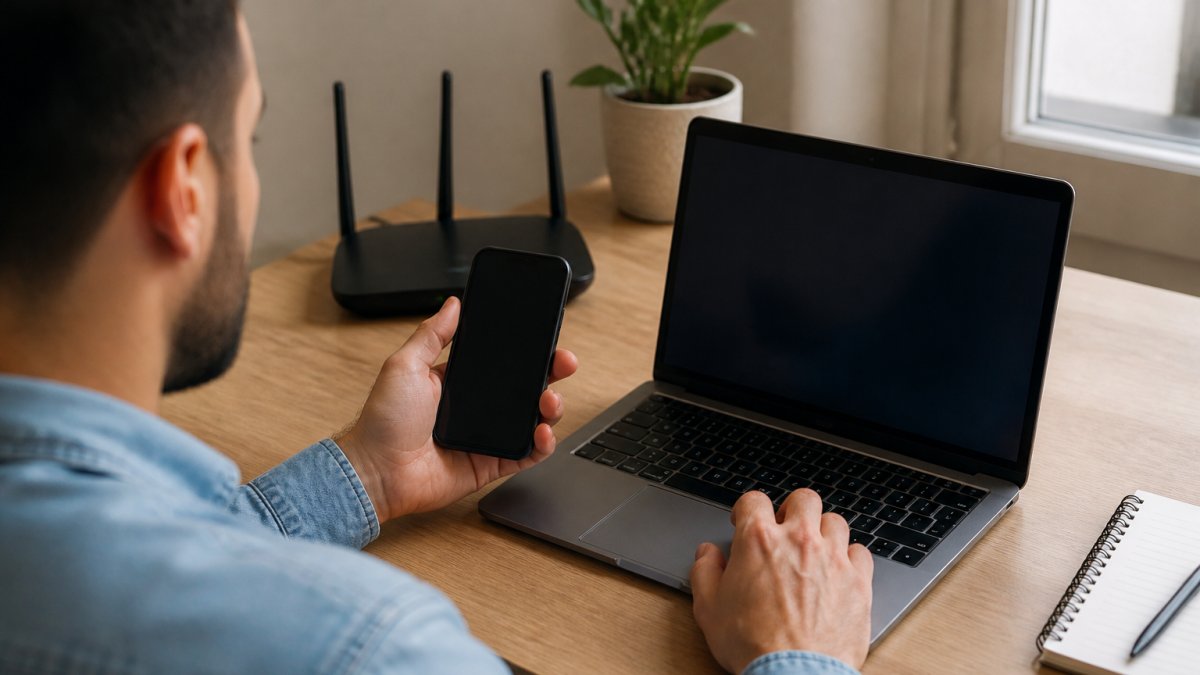
Step 1: Choose Your Test Location and Device
Pick a spot where you normally use the internet. If you work from your desk, test there. If you watch videos in the living room, test there.
Use the device you use most often. WiFi speed varies depending on your device, how far it is from the router, and what’s between them.
Write down the location where you test. If you test from multiple rooms, you’ll see how distance affects your speed check wifi results. This helps identify dead zones in your home where the signal weakens.
Step 2: Close Background Applications
Stop everything else using your internet. Close email clients, cloud storage apps, streaming services, and browser tabs with video or music. These programs silently consume bandwidth and throw off your measurements.
On Windows, check the taskbar. On Mac, look at the menu bar. On phones and tablets, swipe through your open apps. Force-close anything that might connect to the internet.
Disable automatic updates temporarily. Windows, macOS, iOS, and Android all update in the background. Turn these off for 10 minutes while you test. You can turn them back on immediately after.
Step 3: Run Your Speed Test
Open a web browser and search for “speed test” or go to a major speed testing site. You don’t need to download software, browser-based tests work perfectly fine.
Click the big button to start. You can also explore alternative methods and tools for testing internet speed to complement your testing approach.
Wait for the test to finish completely. Don’t close the browser or switch apps while it’s running. The results appear on screen once it’s done.
Step 4: Record and Compare Your Results
Write down three numbers: download speed (Mbps), upload speed (Mbps), and ping (milliseconds). These are your baseline measurements.
Compare your results to your internet plan. Your provider promised you a certain speed when you signed up. Check your bill or account to see what you’re paying for.
Run the test again from different rooms. Speed drops the further you get from your router. If speeds are strong near the router but weak in other rooms, your WiFi coverage is the issue, not your internet service.
Understanding Your Speed Test Results: Download, Upload, and Ping
Your speed check wifi test gives you three key measurements. Understanding what each one means helps you troubleshoot problems and know whether your connection is actually the issue.
Download Speed and Real-World Performance
Download speed measures how fast data comes to your device. This is the number most people focus on, and it’s what determines whether your streaming, browsing, and video calls work smoothly.
Download speed is measured in Mbps (megabits per second). Higher numbers mean faster downloads.
Your actual download performance depends on several factors beyond your internet speed. Your device’s WiFi chip, the distance from your router, and interference from walls or appliances all play a role.
Upload Speed for Video Calls and File Transfers
Upload speed measures how fast you send data out to the internet. This matters less for most people, but it’s critical if you video call, live stream, or back up files to the cloud.
Upload speed is also measured in Mbps. For video calls, 2.5 Mbps is enough for clear video in one direction. If you’re uploading while others in your home are using the internet, you might need more.
Many internet plans offer much slower upload than download speeds. This is normal for residential connections.
Ping, Latency, and Jitter Explained
Ping measures the time it takes for a signal to travel from your device to a server and back. It’s measured in milliseconds (ms). Ping under 50 ms feels instant. Learn how to reduce internet latency and boost your connection speed to improve your ping and overall performance.
Latency is another word for ping. Both terms describe the same thing. When you see “latency” in a speed test result, it’s the same number as ping.
Jitter measures how much your ping bounces around. If your ping is 30 ms one moment and 60 ms the next, you have high jitter. Consistent ping is more important than low ping for online gaming and video calls. Jitter under 10 ms is good.
How to Test WiFi Speed on Phone
Testing WiFi speed on your phone is just as easy as testing on a computer.
Open a web browser on your phone, Safari on iPhone or Chrome on Android. Search for “speed test” or visit a major speed testing site.
Make sure you’re connected to WiFi, not cellular data. Check your phone’s settings to confirm. Testing on cellular gives you mobile data speeds, not your home WiFi speed.
Phone results sometimes vary from computer results in the same location. Your phone’s WiFi antenna is smaller and positioned differently.
What Is a Good WiFi Speed for Your Activities
“Good” speed depends entirely on what you do online. Understanding your actual needs helps you check internet availability by address and choose the right plan.
For basic web browsing and email, 10-25 Mbps is plenty. Pages load quickly. Email syncs instantly. You won’t notice any lag.
For streaming video, you need more. Netflix recommends 5.5 Mbps for HD video and 25 Mbps for 4K.
For online gaming, ping matters more than download speed. 25 Mbps download is enough for almost any game. Ping under 50 ms keeps gameplay smooth.
For video calls, 2.5 Mbps upload is the minimum for clear video. Download speed needs to be at least 2.5 Mbps too. If you’re the only one on the call, these numbers work. If multiple people video call at once, double them.
For working from home, 25-50 Mbps download and 5-10 Mbps upload handles most jobs. Video conferencing, file uploads, and web browsing all work smoothly. If you’re uploading large files regularly, aim higher on upload speed.
| Activity | Minimum Download | Recommended Download | Minimum Upload |
|---|---|---|---|
| Web browsing | 5 Mbps | 10-25 Mbps | 1 Mbps |
| Video streaming (HD) | 5.5 Mbps | 15-25 Mbps | 1 Mbps |
| Video calls | 2.5 Mbps | 5-10 Mbps | 2.5 Mbps |
| Online gaming | 10 Mbps | 25+ Mbps | 3 Mbps |
| Work from home | 10 Mbps | 25-50 Mbps | 5 Mbps |
Run your speed check wifi test while doing the activities you care about most. If you game, test while gaming. If you video call, test during a call. Real-world performance matters more than theoretical speeds.
Separating WiFi Problems from ISP and Modem Issues
A slow speed check wifi result doesn’t always mean your internet service is the problem. Your WiFi, modem, or ISP could each be the culprit.
Test your connection using an Ethernet cable. Plug your computer directly into your modem or router with a cable. Run another speed test.
If the wired speed is much faster than your WiFi speed, your WiFi is the problem. Discover common internet problems and easy fixes to help diagnose whether your issues stem from WiFi, modem, or ISP.
Call your internet service provider and tell them what speeds you’re getting. They can check your line quality on their end.
Restart your modem before you blame the ISP. Unplug it for 30 seconds, then plug it back in. Wait 2 minutes for it to fully restart.
Don’t assume your modem is broken just because speed is slow. A slow speed check wifi test usually points to WiFi distance, interference, or too many devices connected. Modems rarely fail suddenly, they either work or they don’t.
How to Improve WiFi Speed After Testing
Once you know what’s causing slow speeds, you can fix it. Different problems need different solutions.
If distance is the problem, move your router to a more central location in your home.
Reduce interference from other devices. Microwaves, baby monitors, and cordless phones use the same 2.4 GHz frequency as WiFi. Keep your router away from these devices.
Check how many devices are connected. Each device shares your bandwidth. Disconnect devices you’re not using.
Switch to the 5 GHz band if your router supports it. This frequency has less interference and faster speeds, but shorter range. It works great for devices close to the router.
If your home is large or has thick walls, consider a mesh WiFi system. You can explore mesh systems and coverage options to see what works best for your space.
Restart your router weekly. Unplug it for 30 seconds, then plug it back in. This clears out memory and often improves performance.
Common Mistakes to Avoid When Testing Your Connection
Testing WiFi speed seems simple, but small mistakes throw off your results.
Don’t run a speed check wifi test while other people are using the internet.
Don’t test right next to the router.
Don’t trust a single test result.
Don’t compare your speed to someone else’s. Their plan, location, and equipment are different.
Don’t ignore the time of day.
Don’t assume slow WiFi means slow internet. Test with an Ethernet cable first.
Don’t blame your router without testing.
Getting accurate measurements helps you understand what’s actually happening with your connection.
Frequently Asked Questions
How do I check my WiFi speed?
Open a browser on any connected device and visit a free speed test website. Click the start button to begin the test, which measures your download speed, upload speed, and ping. The test typically takes 30-60 seconds. You’ll see results in Mbps (megabits per second) for downloads and uploads, and milliseconds for ping. Close background applications and run the test from different locations in your home to get accurate readings of your WiFi signal strength and network performance.
What is a good WiFi speed for streaming and gaming?
For streaming video in HD, aim for at least 5-10 Mbps download speed. 4K streaming requires 25+ Mbps. Online gaming needs 10+ Mbps download with low ping (under 100ms). Video calls work well with 2.5+ Mbps upload speed. If you’re working from home with multiple devices and video calls, 50+ Mbps download is ideal to avoid congestion during peak hours. Test your actual speed against your internet plan to ensure your broadband meets these thresholds.
Why is my WiFi speed slower than my internet plan?
Several factors reduce WiFi speed below your advertised plan. Distance from the router, obstacles, and signal interference lower connection quality. Background applications and multiple devices consume bandwidth. Test with an Ethernet cable directly to your modem to determine if the issue is WiFi or your ISP. If wired speed matches your plan but WiFi is slower, the problem is router placement or interference. If both are slow, contact your internet service provider to check if they’re delivering the promised speeds to your modem.
How do I test WiFi speed on my phone?
Most speed test websites work on mobile browsers, just open your phone’s browser and visit a free speed test site, then tap the start button. Alternatively, download a dedicated speed test app. Position your phone at various distances from your router to measure WiFi coverage room by room. Close background apps before testing. Compare results near the router versus at the edge of your home to identify dead zones. Mobile testing helps you understand whether your wireless network provides consistent performance throughout your space.
