Posts tagged: internet providers dearborn
Smart TVs have changed the way people enjoy entertainment at home. Instead of depending only on cable channels, you can now stream movies, shows, sports, documentaries, music, live TV, and online videos directly on your screen. But to enjoy smooth and high-quality entertainment, you need more than just a smart TV. A professional streaming setup can make your viewing experience faster, clearer, and more enjoyable.
A good streaming setup helps reduce buffering, improve picture quality, support better sound, and make it easier to access your favourite apps. Whether you watch Netflix, YouTube, Prime Video, Disney+, Hulu, live sports, or IPTV services, the right setup can make a big difference.
Why a Professional Streaming Setup Matters
Many people buy a smart TV and expect everything to work perfectly straight away. While smart TVs are built for streaming, the final experience depends on several things, including internet speed, WiFi strength, app performance, device settings, and home network quality.
If your internet connection is weak or your TV is far from the router, you may face slow loading, poor video quality, freezing screens, or repeated buffering. A professional streaming setup helps solve these issues by creating a stronger and more stable connection for your entertainment system.
It also helps you get the best out of your TV. If you have a 4K or HDR smart TV, you need the right internet speed, correct display settings, and compatible streaming apps to enjoy sharp visuals and rich colours.
Start with a Reliable Internet Connection
The most important part of any smart TV streaming setup is a reliable internet connection. Streaming uses a lot of data, especially when watching HD, 4K, or live content. If your internet speed is too slow, your video may pause, drop in quality, or take longer to load.
For basic HD streaming, a moderate connection may be enough. But for 4K streaming, multiple devices, gaming, video calls, and smart home use, a faster and more stable internet plan is better. Homes with several users should choose an internet service that can handle multiple devices at the same time.
A strong internet connection helps keep your smart TV entertainment smooth, whether you are watching a movie, live match, family show, or online event.
Improve WiFi Coverage Around Your TV
Even if your internet plan is fast, weak WiFi can still affect streaming quality. If your smart TV is far from the router or there are walls between the TV and router, the signal may not be strong enough.
To improve WiFi coverage, place your router in a central location and avoid hiding it behind furniture or inside cabinets. Keep it away from thick walls, metal objects, and other electronics that may interfere with the signal.
For larger homes, a WiFi extender or mesh WiFi system can help spread the connection more evenly. This gives your smart TV a stronger signal and reduces buffering during streaming.
Use a Wired Connection for Better Stability
For the best streaming performance, an Ethernet cable can be a smart choice. A wired connection is usually more stable than WiFi because it connects your smart TV directly to the router.
This is useful for people who stream 4K content, watch live sports, use IPTV, or want fewer interruptions. While WiFi is convenient, Ethernet can offer better reliability, lower delay, and smoother playback.
If your TV and router are close enough, connecting them with a cable can be one of the easiest ways to improve your professional streaming setup.
Choose the Right Streaming Apps and Devices
Most smart TVs come with built-in apps, but not all apps work equally well on every TV. Some older smart TVs may become slow over time or may not support the latest app updates.
If your TV apps are slow, you can use an external streaming device such as a streaming stick, Android TV box, Apple TV, Roku, or Fire TV device. These devices can improve app speed, provide better updates, and make it easier to access different streaming platforms.
Make sure your apps are updated regularly. Updated apps often perform better and may include security improvements, bug fixes, and new features.
Adjust Your Smart TV Settings
A professional streaming setup is not only about internet speed. Your TV settings also matter. Many smart TVs have picture modes such as Standard, Cinema, Movie, Sports, or Game Mode. Choosing the right mode can improve your viewing experience.
For movies and shows, Cinema or Movie Mode often gives a more natural picture. For sports, a brighter setting may help. For gaming, Game Mode can reduce input delay.
You should also check sound settings. If your TV speakers are not strong enough, a soundbar or home theatre system can create a better entertainment experience with clearer dialogue and deeper sound.
Keep Your Streaming Setup Organised
A clean and organised setup improves both performance and appearance. Use proper cable management to avoid messy wires around your TV area. Keep your router, streaming devices, and TV accessories in well-ventilated spaces so they do not overheat.
Also, remove apps you do not use. Too many unused apps can make some smart TVs feel slow. Restart your TV and router occasionally to refresh the connection and improve performance.
Protect Your Home Network
A good streaming setup should also be secure. Use a strong WiFi password and avoid sharing your network with too many unknown devices. Too many connected devices can slow down your internet and affect streaming quality.
You can also create a separate guest network for visitors. This helps protect your main home network and keeps your smart TV, phones, laptops, and smart devices more secure.
Final Thoughts
A professional streaming setup for smart TV entertainment can turn a simple viewing experience into a smoother, clearer, and more enjoyable one. With reliable internet, strong WiFi coverage, updated apps, proper TV settings, and a stable connection, you can enjoy your favourite content with fewer interruptions.
Whether you love movies, sports, live TV, gaming, or family shows, the right setup helps your smart TV perform at its best. By improving your internet connection, organising your devices, and choosing the right streaming tools, you can create a home entertainment experience that feels simple, modern, and reliable.
FAQs
1. What internet speed is best for smart TV streaming?
For smooth HD streaming, a stable internet connection is usually enough. For 4K streaming, live sports, gaming, or multiple devices, a faster plan is better to reduce buffering and loading issues.
2. Is WiFi good enough for smart TV streaming?
WiFi can work well if the signal is strong and your TV is close enough to the router. If you face buffering or weak signals, a wired Ethernet connection may give better stability.
3. Why does my smart TV keep buffering?
Buffering can happen because of slow internet speed, weak WiFi coverage, too many connected devices, outdated apps, or poor router placement. Improving your network setup can help fix the issue.
4. Do I need a streaming device if I already have a smart TV?
Not always. If your smart TV apps work smoothly, you may not need one. However, a streaming device can help if your TV is slow, apps are outdated, or you want access to more streaming platforms.
5. How can I improve my smart TV streaming quality?
You can improve streaming quality by using reliable internet, placing your router in a better location, updating apps, using Ethernet where possible, and adjusting your TV picture and sound settings.
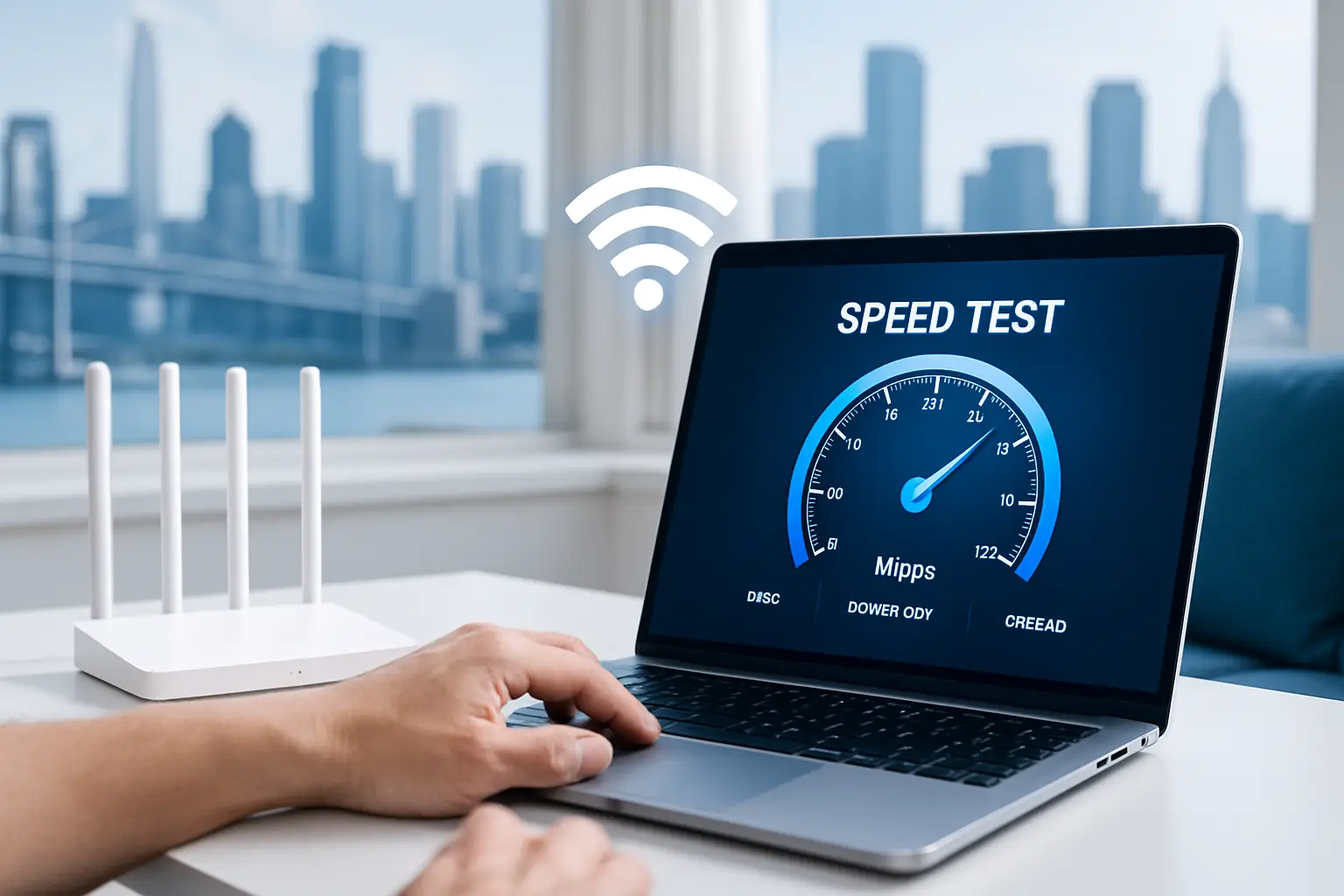
Best Ways to Test Your Internet Speed and Boost Your Connection
If you’ve ever wondered why your favorite video is buffering, your game is lagging, or a download is crawling at a snail’s pace, it might be time to test your internet speed. Checking your connection can help you understand whether the issue is with your internet setup, your devices, or sometimes even the website you’re visiting. Today, let’s walk through the best ways to test your internet speed and discover practical strategies to boost your connection for a smoother online experience.
Why Testing Your Internet Speed Matters
Your internet speed test measures how quickly your device can send and receive data from a server. This often includes three important components:
- Download Speed – How fast data moves from the internet to your device.
- Upload Speed – How fast data moves from your device to the internet.
- Ping (Latency) – The time it takes for data to travel to a server and back.
Knowing these numbers helps you troubleshoot issues, determine whether you’re getting what you pay for, and diagnose when it’s time for an upgrade or better equipment.
How to Test Your Internet Speed
1. Built-in Browser Speed Tests
Several search engines now offer built-in speed tests directly in your browser. This makes it quick and easy—no need to download extra apps. For example, searching “internet speed test” often brings interactive tools right into your search results.
2. Third-Party Testing Sites
There are independent websites available that allow you to test download, upload, and latency in seconds. Many of these also log results so you can compare over time. Communities on Reddit often recommend testing multiple times throughout the day for a more accurate picture.
3. Mobile Apps
On your phone, you can use speed test apps available on app stores. These apps are especially helpful if you want to check whether your cellular data or your Wi-Fi is causing slow performance.
4. Router Testing Features
Some modern Wi-Fi routers include built-in speed testing directly in their companion apps. This allows you to measure the connection quality from the source, rather than just from a device that might be affected by weak Wi-Fi signals.
Factors That Can Affect Speed Tests
- Time of Day: Peak evening hours may show slower speeds due to network congestion.
- Location in the Home: Testing close to your router vs. across the house can provide different results.
- Wired vs. Wireless: Ethernet cable tests usually give more accurate and consistent results compared to Wi-Fi.
- Background Usage: Other devices streaming, gaming, or downloading may reduce speed test results.
Tips to Boost Your Internet Connection
1. Restart Your Equipment
A classic solution: unplug your modem and router for 30 seconds, then plug them back in. This refreshes connections and often solves temporary slowdowns.
2. Place Your Router Strategically
Location matters. Keep your router in a central spot, raised off the floor, and away from thick walls or electronics that can interfere with the signal.
3. Use Wired Connections When Possible
If consistent speed is essential (such as for gaming or video calls), use an Ethernet cable to connect your computer directly to the router.
4. Update Your Router Firmware
Manufacturers frequently release firmware updates that improve performance and security. Check your router’s app or settings page to ensure you’re running the latest version.
5. Limit Bandwidth Hogging
Streaming ultra-HD videos, downloading large files, or having multiple smart devices running can overwhelm your network. Prioritize critical tasks by limiting extra usage when needed. Communities like Quora discuss strategies for bandwidth management that can be helpful.
6. Consider Using a Mesh Wi-Fi System
If your home has Wi-Fi dead zones, a mesh system can extend coverage more smoothly than a single router with extenders. Many users on Facebook groups about smart homes share real-world experiences using mesh setups for better whole-home connectivity.
7. Secure Your Network
If your network is unsecured, neighbors or strangers could connect and slow things down. Make sure you’re using a strong Wi-Fi password and the latest WPA3 (or WPA2 at minimum) encryption.
Using Speed Test Results Effectively
A speed test doesn’t just give you a number; it tells part of your internet story. Here’s how to interpret:
| Speed Range | What You Can Expect |
|---|---|
| Under 5 Mbps | Basic browsing and email only, struggles with streaming. |
| 5–25 Mbps | Decent for HD streaming on one or two devices. |
| 25–100 Mbps | Smooth for multiple users, streaming, and video calls. |
| 100+ Mbps | Great for heavy use like 4K streaming and gaming. |
When Is It Time to Upgrade?
If you’ve tried all boosting strategies and consistently find your speed test results do not meet your needs, upgrading your hardware may be the solution. This could mean a better router, a mesh Wi-Fi system, or higher-tiered internet access. It’s also worth joining forums such as Reddit’s Tech Support to see what equipment upgrades others recommend for reliable performance.
Final Thoughts
Testing your internet speed regularly ensures you know exactly how well your connection is performing. From browser-based checks to router-level diagnostics, the process is simple yet powerful in helping you solve bottlenecks. Pairing speed awareness with smart strategies like proper router placement, updates, and security goes a long way in getting the most from your connection. With a little testing and tweaking, you’ll be streaming, gaming, and working with fewer interruptions.

Best Internet Options Every Apartment Dweller Should Know
If you’ve recently moved into an apartment, one of the top priorities on your checklist is likely getting connected online. From work and school to streaming movies, gaming, and video calls with family, reliable access is no longer just convenient — it’s essential. The good news is, there are multiple internet options for apartment dwellers, ranging from traditional broadband to newer Wi-Fi solutions. In this guide, we’ll walk through the best internet options, practical tips for setting up Wi-Fi, and what every apartment resident needs to know to maximize their connection at home.
Why Internet Choice Matters in Apartments
Unlike homeowners, apartment dwellers have unique challenges when it comes to internet service:
- Shared walls and multiple floors can create Wi-Fi dead zones.
- Some buildings restrict which internet providers you can use.
- Dense neighborhoods mean more network congestion from nearby signals.
- Streaming, work-from-home, and online learning put more pressure on having reliable service.
Because of these challenges, choosing the right internet type and equipment is more important for apartment living. Let’s look at the best internet options available to you.
Types of Internet Connections for Apartments
Fiber Internet
Fiber offers some of the fastest speeds available, ideal for streaming 4K content, online gaming, or running a home office. It’s especially useful for shared apartments where multiple people are online at the same time. Unfortunately, not every building is wired for fiber. If your building has access, it’s one of the most reliable options.
Cable Internet
Cable internet is widely available in cities and suburbs. It offers great speeds for most uses, but since bandwidth is shared among neighbors, it may slow during peak evening hours.
DSL Internet
DSL uses existing phone lines and is often available even in older buildings. While usually slower than fiber or cable, it can be sufficient for smaller households or those who mainly browse the web and stream lightly.
Fixed Wireless and 5G Home Internet
Some apartment dwellers are turning to fixed wireless or 5G home internet plans. These use cellular signals to create a Wi-Fi network inside your apartment. While performance depends on signal strength in your area, it can be a strong option if wired connections are limited.
Satellite Internet
Satellite internet has historically been a last resort for rural areas, but some newer satellite options are faster and more capable than older ones. For urban or suburban apartments, it’s usually not needed — but good to know as a backup.
How to Set Up Wi-Fi in an Apartment
Once you’ve chosen your internet plan, the next step is setting up your Wi-Fi network. Apartment layouts mean you’ll want to carefully consider router placement.
- Center your router: Place it in the middle of your apartment for more even coverage.
- Keep it elevated: Routers perform best when not placed on the floor or hidden behind furniture.
- Limit interference: Keep it away from microwaves, cordless phones, and thick walls if possible.
- Consider mesh Wi-Fi: For larger apartments or multi-level townhomes, a mesh Wi-Fi system uses multiple nodes to cover more space consistently.
Mesh Wi-Fi for Apartment Dwellers
A mesh Wi-Fi system can be a game changer in apartment living. Instead of relying on one router, the system uses smaller hubs placed around your space to eliminate dead zones. Think of it like having walkie-talkies in different rooms, ensuring a consistent signal everywhere.
Benefits of Mesh Wi-Fi:
- Covers multiple rooms with consistent speed.
- Reduces buffering in streaming and video calls.
- Easy to expand coverage by adding more nodes.
For city apartments with concrete walls or shared basements, mesh systems often perform significantly better than a single standalone router. You can find reviews and helpful setup tutorials on platforms like YouTube if you want a visual walkthrough.
Choosing the Right Router
Your internet speed is only as strong as your router. Here’s a breakdown of what to look for:
| Router Type | Best For |
|---|---|
| Basic Dual-Band Router | Small one-bedroom apartments with light use |
| Wi-Fi 6 Router | Households with multiple devices, streaming, and smart home gadgets |
| Wi-Fi Mesh System | Larger apartments, shared apartments, or multi-level layouts |
A newer generation Wi-Fi 6 or Wi-Fi 6E router dramatically improves latency, meaning smoother video calls and less lag during gaming. Many users on Reddit network threads recommend upgrading to Wi-Fi 6 even if you’re not a heavy gamer, since it handles multiple devices far better.
Apartment Internet Setup Tips from Real People
Sometimes the best advice comes from experience. Online communities like Quora and Reddit are full of personal tips from other apartment renters:
- “Don’t just put your router in the corner where the outlet is — run an Ethernet cord to a better location for stronger Wi-Fi.”
- “If you’re gaming in your bedroom but the router is in the living room, add a mesh satellite near your desk for zero lag.”
- “For roommates, set up a guest network so your devices stay private but everyone still has access.”
Practical tweaks like these can make the difference between frustration and a smooth online experience.
Internet for Work-From-Home Apartments
If you’re working remotely, your internet setup needs extra attention. Here are some considerations:
- Stability over speed: A stable connection is more important than ultra-fast speeds for most video calls and office tasks.
- Ethernet cable: If possible, plug your work computer directly into the router. This cuts out Wi-Fi interference.
- Bandwidth priority: Some routers let you give priority to certain devices so your video calls aren’t interrupted by background streaming.
Entertainment and Streaming Demands
Apartments are often filled with streaming — movies in one room, gaming consoles in another, and music streaming everywhere. To optimize this:
- Look for plans with unlimited data to avoid overage fees.
- Use Ethernet connections for game consoles where possible.
- If you have multiple 4K streams, aim for a plan higher than 200 Mbps or use fiber for maximum reliability.
Final Thoughts
Finding the best internet for your apartment doesn’t have to be complicated. Start by checking what’s available in your building, then consider how you and your roommates use the internet. From there, pair a good plan with the right router or mesh Wi-Fi system to cover your entire space. And remember — placement, equipment updates, and small tweaks can often improve performance without changing your service plan. With the right setup, you’ll enjoy a smooth online experience whether you’re working, gaming, streaming, or just staying connected with friends and family.