Posts tagged: best internet provider sugar land
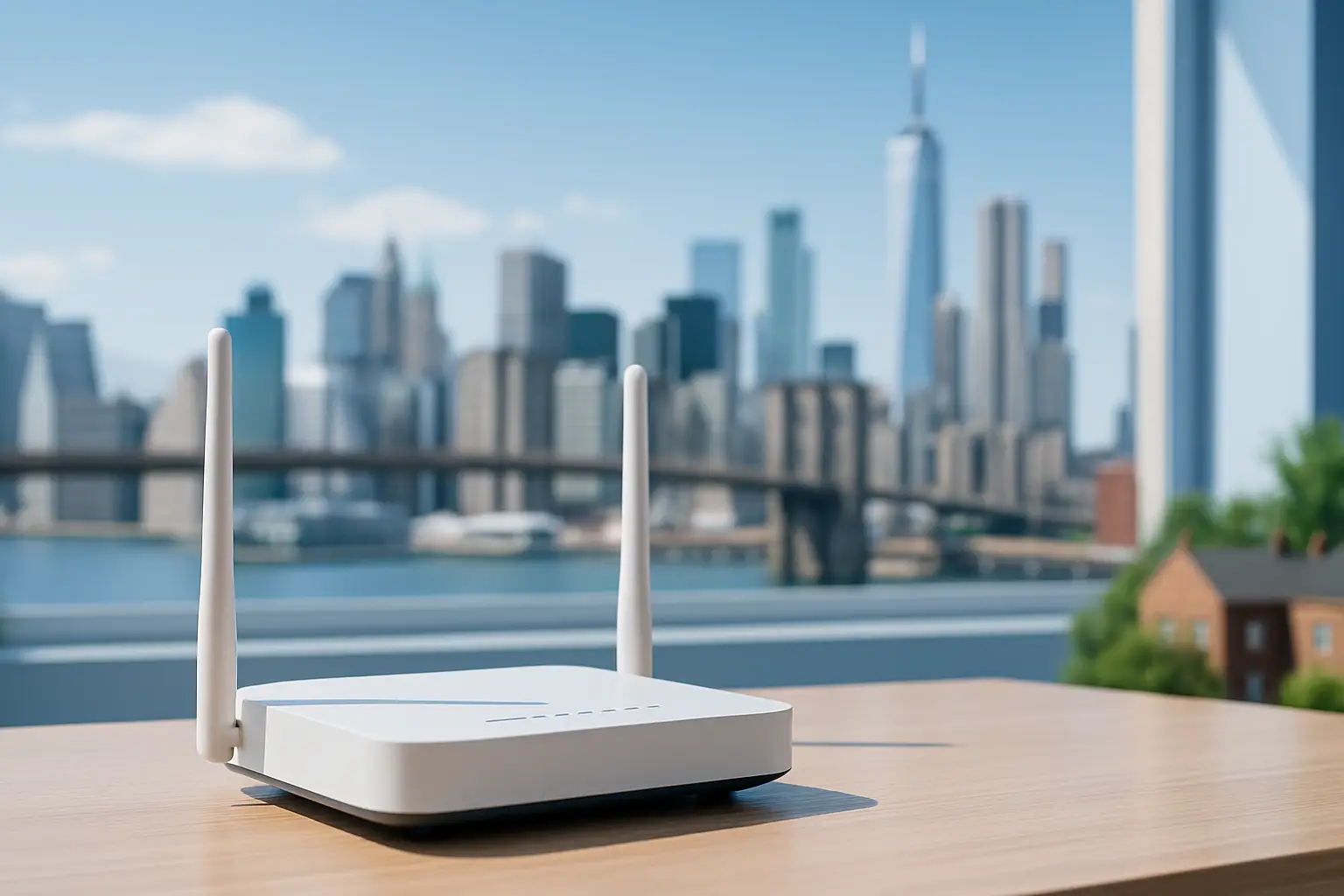 Explore which internet providers offer free modems and why this small perk can reduce your monthly costs. The article lists major ISPs that include a modem at no extra charge and explains how to evaluate service terms, speeds and hidden fees
We’ve all been there. You sign up for an internet plan that looks like a great deal—maybe $50 a month—but when the first bill arrives, it’s suddenly $65 or $70.
What happened? Often, the culprit is the dreaded equipment rental fee.
For years, Internet Service Providers (ISPs) have quietly added $10, $15, or even $20 a month just for the privilege of using their modem and router. Over a year, that’s up to $240 spent on a plastic box you don’t even own.
Fortunately, the industry is shifting. To simplify connectivity and compete for your business, several top providers have started including the equipment in the monthly price.
If you are looking to cut costs and simplify your setup, here are the top internet providers offering free modems (or gateways) for easy connectivity in 2025.
1. T-Mobile 5G Home Internet
Best For: Renters and simplicity seekers.
T-Mobile disrupted the market by getting rid of the complex cable setup entirely. Their 5G Home Internet service works differently: they ship you a “Gateway” (a combined modem and WiFi router) that picks up 5G signals from nearby towers and turns them into WiFi for your home.
The Deal:
Equipment Cost: $0.
Rental Fee: $0/mo.
Setup: Plug it into a wall outlet, and you’re done.
There are no wires to run and no technicians to wait for. Because the Gateway is included in the monthly price, the price you see is actually the price you pay.
2. AT&T Fiber
Best For: High-speed reliability.
If you have access to fiber optics, AT&T is a fantastic choice. A few years ago, AT&T eliminated equipment fees for their fiber plans. When you sign up, they provide an AT&T Wi-Fi Gateway, which handles both the incoming fiber connection and your home WiFi.
The Deal:
Equipment Cost: Included in the plan.
Hidden Fees: None for the standard gateway.
Note: If you have a very large home and need their “Wi-Fi Extenders” to reach dead zones, those usually come with an extra monthly charge. However, the main gateway is free.
3. Google Fiber
Best For: Transparency and speed.
Google Fiber has always been the “good guy” regarding billing transparency. Since their inception, they have hated hidden fees as much as you do. Their plans (1 Gig, 2 Gig, etc.) almost always include a high-quality Mesh WiFi router system.
The Deal:
Equipment Cost: Included.
The Perk: Google often provides superior hardware (like Mesh pucks) compared to the standard black boxes other ISPs give out, ensuring better coverage for larger homes.
4. Verizon (Fios & 5G Home)
Best For: Flexible options.
Verizon has followed suit with its competitors. Whether you are getting Fios (their fiber service) or 5G Home Internet, the rental fees are largely a thing of the past for new plans.
5G Home: Includes a receiver/gateway for free.
Fios: Most current plans include the router rental in the monthly price.
Verizon’s 5G gateway is particularly sleek, designed to sit on a window sill and blend into your home decor without looking like a piece of industrial tech.
5. Spectrum (The “Read the Fine Print” Option)
Best For: Widespread availability.
We included Spectrum here because they are available in so many neighborhoods, but there is a catch you need to know.
Spectrum offers a free modem to all customers. However, they usually charge $5–$7 a month for the WiFi router.
Wait, what’s the difference?
The Modem: Brings the internet into your house (Free with Spectrum).
The Router: Sends the WiFi signal to your phone and laptop (Cost extra).
Pro Tip: Since the modem is free, you can buy your own WiFi router (for a one-time cost of $50–$80) and plug it into Spectrum’s free modem. This creates a “free equipment” setup, but it requires a tiny bit of DIY effort.
Summary: Gateway vs. Modem vs. Router
If you are confused by the terminology, here is the cheat sheet for easy connectivity:
Modem: Connects your home to the ISP network.
Router: Creates the WiFi signal.
Gateway: A 2-in-1 device (Modem + Router combined).
Providers like T-Mobile and AT&T give you a Gateway (everything in one box) for free. This is the easiest connectivity option because you just plug in one device and go.
Final Thoughts
When shopping for internet on myneighborhoodwifi.com, look past the advertised speed. A “cheap” plan with a $15 equipment rental fee is often more expensive than a premium plan that includes the equipment for free.
By choosing a provider that offers free modems or gateways, you save money and avoid the hassle of returning expensive equipment if you ever move.
Ready to get connected? check your zip code today to see which of these provider-friendly ISPs are available in your neighborhood!

Internet Providers with Free Installation in Sterling Heights, MI
If you are looking for reliable internet providers with free installation in Sterling Heights, MI, you’re in the right place. Choosing the right provider can feel overwhelming, but when you add the extra perk of free installation, it can save you money and stress. In this post, we’ll explore the top available providers, discuss their benefits, and give you practical tips for setting up internet in your home or business.
Why Choose Internet Providers with Free Installation?
Internet installation often comes with a fee that may run anywhere from $50 to $150 depending on the company. In Sterling Heights, MI, many residents look for deals that waive this charge. Free installation is particularly helpful if you are moving, starting a new service, or just trying to keep upfront costs low. Here are a few benefits:
- Lower upfront cost – You won’t need to pay a technician fee at the start.
- Quick setup – Most companies offering free install schedule sooner to entice new customers.
- Promotional discounts – Free installation often comes bundled with other offers like free equipment or speed upgrades.
Top Internet Providers in Sterling Heights, MI
Residents of Sterling Heights, MI, have access to several internet providers, each offering various plans. Some providers regularly offer promotions with free installation.
Xfinity
Xfinity is one of the largest providers in Sterling Heights, MI. It delivers cable internet with wide coverage across the city. Xfinity often offers free installation through online-only promotions or limited-time campaigns.
– Speeds range: 75 Mbps to 1200 Mbps
– Bundles: Internet + TV or Internet + Phone
– Free installation: Available during promotional periods
AT&T Fiber
AT&T Fiber is available in parts of Sterling Heights, MI, offering extremely fast fiber-optic connections. Free installation promos are frequently included with new contracts.
– Speeds: 300 Mbps to 5000 Mbps depending on coverage
– Reliable low-latency performance (great for gaming and streaming)
– Free install often applied for online sign-ups
WOW! Internet
WideOpenWest (WOW!) also serves Sterling Heights, MI, with competitive plans. WOW! is known for low pricing and free installation offers for new customers.
– Speeds: 100 Mbps to 1200 Mbps
– Free modem often bundled along with free installation
– Contract-free options available
EarthLink
EarthLink provides services in Sterling Heights, MI, by renting network access from AT&T and other carriers. They highlight transparent pricing without hidden fees. Free installation may be available depending on current offers.
– Speeds: 100 Mbps – 5 Gbps (varies by fiber availability)
– No throttling promises
– Free install can apply with certain plans
Comparing Internet Providers in Sterling Heights, MI
Below is a simple table comparing providers available in Sterling Heights, MI, and their general benefits. Always check the provider’s website or call before ordering, as offers change regularly.
| Provider | Speed Range | Connection Type | Free Installation |
|---|---|---|---|
| Xfinity | 75 Mbps – 1200 Mbps | Cable | Promotional offers |
| AT&T Fiber | 300 Mbps – 5 Gbps | Fiber | Promotional offers |
| WOW! | 100 Mbps – 1200 Mbps | Cable/Fiber Hybrid | Often free with signup |
| EarthLink | 100 Mbps – 5 Gbps | Fiber (via AT&T) | Occasional promo |
How to Check Internet Availability in Your Neighborhood
Although Sterling Heights, MI, has broad coverage, not every provider serves every neighborhood. Fiber service like AT&T Fiber may only reach certain areas. To check availability:
- Visit the provider’s official site and enter your ZIP code.
- Ask neighbors through forums like Reddit or Quora about their experience.
- Some Yelp reviews can also highlight neighborhoods where service is better.
Free Installation Promotions: What to Look For
When searching for an internet provider that includes free installation in Sterling Heights, MI, here’s what you should watch for:
- Promotional Periods – Most free installs are time-based promos.
- Online Ordering – Many companies waive installation fees if you order online instead of over the phone.
- Contract Packages – Some companies require signing a 1-2 year contract to waive the install fee.
Tips for Negotiating Free Installation
Even if free installation isn’t advertised, it doesn’t mean you can’t ask for it. Here are some tips:
– Call and mention that another provider is offering free installation.
– Sign up during moving season; companies are more willing to negotiate.
– Ask for the installation fee to be waived in exchange for agreeing to autopay.
Choosing the Right Plan for Your Household
Not everyone needs gigabit internet. The best option depends on your household size and online activities.
Small Households (1-2 People)
– 75–200 Mbps is usually enough.
– Xfinity’s entry-level plan may fit.
Medium Households (3-4 People)
– 300–600 Mbps.
– AT&T Fiber or WOW! mid-tier plans are strong options.
Large Households or Gamers
– 1 Gbps or more for lag-free gaming and 4K streaming.
– AT&T Fiber 1 Gbps or higher is ideal if in range.
Customer Experiences in Sterling Heights, MI
Customer input is one of the most valuable insights when deciding on a provider. Many residents share their installation stories on Reddit community groups and Facebook neighborhood pages. Reviews regularly mention that free installation promos are worth calling about, since some providers don’t advertise them heavily.
Final Tips for Residents of Sterling Heights, MI
When searching for internet providers with free installation in Sterling Heights, MI:
- Always confirm that the installation fee is waived before completing your order.
- Re-check availability in your neighborhood, because providers update coverage areas frequently.
- Take advantage of online-order discounts.
- Don’t hesitate to negotiate with a customer rep — free installation is one of the easiest perks to request.

Shield Your Internet Connection from Hackers with These Smart Security Tips
Your home network has quickly become as essential as electricity and running water. Whether you’re streaming shows, working from home, or controlling smart appliances, your Wi-Fi is the hub of daily life. But with this convenience comes risk: hackers are constantly looking for vulnerabilities. That’s why it’s crucial to shield your internet connection from hackers with smart security tips that actually work.
Why Internet Security Matters More Than Ever
The number of connected devices in our homes has skyrocketed in recent years. From smart speakers and cameras to thermostats and doorbells, these gadgets all depend on your Wi-Fi. Unfortunately, this makes your home network an attractive target. If left unprotected, attackers can steal personal data, snoop on communications, or even hijack devices for malicious purposes.
Consider your internet connection like the front door to your digital life. You wouldn’t leave the door wide open; you’d lock it. The same principle applies here—securing your Wi-Fi is locking that digital door.
Check Your Internet Reliability First
Before you dive into security, ensure your Wi-Fi runs reliably. Unstable connections can mask signs of interference or even unauthorized use. Tools like speed testing apps, network analyzers, and your router’s diagnostics can help pinpoint whether the problem is interference, outdated hardware, or something more suspicious [source].
Smart Security Tips for Your Wi-Fi
1. Change Default Router Credentials
Your router is the gatekeeper of your network. Manufacturers often ship them with standard usernames and passwords, and hackers know them all. As soon as your router is up and running, log in and change both the admin username and password to something strong and unique.
2. Use WPA3 or WPA2 Encryption
Your Wi-Fi encryption standard matters. WPA2 and WPA3 are currently the most secure. If your router is still using the older WEP or WPA standard, it’s time for an upgrade. These outdated methods can be cracked in minutes by anyone with basic tools readily available online.
3. Set Up a Guest Network
Guests in your home may be harmless, but their devices can unknowingly carry malware. Instead of giving out your main Wi-Fi password, set up a dedicated guest network with its own credentials. This also applies to IoT devices such as smart cameras and thermostats—keeping them on a separate network adds a valuable layer of protection [source].
4. Use a Firewall
A firewall works like a digital security guard, blocking suspicious traffic and unauthorized access. Most routers have built-in firewalls. Make sure yours is enabled, and for added control, use software firewalls on individual devices [source].
5. Turn Off WPS (Wi-Fi Protected Setup)
Although intended to make connecting easier, WPS has a serious flaw: it can be exploited by brute force. Disabling WPS in your router settings closes off this risky entry point.
6. Keep Firmware and Devices Updated
Every update isn’t just about new features—it often includes important security patches. Hackers thrive on people forgetting to update their firmware and software. Set reminders or enable auto-updates where possible.
7. Hide Your SSID
Your SSID is the public name of your Wi-Fi network. Broadcasting it makes it easier for guests to find you, but it also makes it easier for hackers. Consider hiding your SSID and only sharing it with trusted individuals. While not foolproof, it adds one more step of difficulty for attackers.
8. Control Connected Devices
Every device on your network is a potential vulnerability. Monitor your router’s admin dashboard regularly to see what’s connected. If you spot unfamiliar devices, investigate immediately and change your Wi-Fi password.
Strong Password Practices
Your Wi-Fi password is the first line of defense. Here’s how to get it right:
- Avoid common phrases, names, or personal details.
- Use at least 12 characters including letters, numbers, and symbols.
- Don’t reuse old passwords from other accounts.
- Store secure credentials in a trusted password manager instead of writing them down.
Why a VPN Is Helpful at Home
Virtual Private Networks (VPNs) are often associated with public Wi-Fi, but they can also protect your activity at home. A VPN encrypts your internet traffic, shielding your browsing from prying eyes—even your internet provider. Paid VPNs are generally more secure than free versions, making them a worthwhile investment if you value privacy [discussion].
Best Practices for Smart Home Security
With the rise of smart home devices, your network faces new challenges. Many smart gadgets don’t have robust security built-in, making them easier targets. To protect your smart ecosystem:
- Place IoT devices on a guest network.
- Change default credentials right after setup.
- Check for firmware updates in their app dashboards.
- Disable features you don’t use, such as remote access.
Recognizing the Signs of a Hacked Network
Sometimes, despite your best efforts, intrusions still happen. Watch for these red flags:
- Internet speed suddenly slows for no clear reason.
- Unknown devices appear in your network’s device list.
- Router lights blink excessively when no one is online.
- Devices act oddly, such as cameras turning on unexpectedly.
If you suspect a breach, disconnect your router, reset it, update your credentials, and reconfigure your network carefully.
Simple Daily Habits for Safer Browsing
Beyond router and Wi-Fi security, your daily habits play a major role in keeping hackers out:
- Avoid clicking suspicious links in emails or messages.
- Always log out of accounts when using shared devices.
- Check for HTTPS in website addresses before entering sensitive information.
- Be cautious downloading attachments from unknown sources.
Conclusion
Securing your internet connection isn’t just about preventing hackers—it’s about protecting your privacy, your family, and your peace of mind. From updating your router settings to practicing strong password hygiene, these small steps collectively shield your home from digital threats. The internet is woven into our everyday lives; securing it ensures you stay connected, protected, and one step ahead of cybercriminals.

Stop Paying Sneaky Internet Fees with These Smart Tips
Let’s be real—nothing is more frustrating than signing up for “$50 internet” only to get a first bill that looks closer to $80, loaded with line items you didn’t expect. Sneaky internet fees are everywhere, from equipment rentals to vague “network improvement” charges. The good news? You don’t have to keep paying them. With a little knowledge and a few smart moves, you can lower your monthly bill and keep those extra dollars in your pocket. In this guide, we’ll break down the most common internet fees, explain why they show up, and share practical tips you can use today to stop them in their tracks.
Why Internet Bills Are So Confusing
If you’ve ever stared at your bill and felt baffled, you’re not alone. Unlike streaming services or app subscriptions, internet providers often tack on a variety of fees beyond the advertised base price.
- Hidden Charges: Taxes, surcharges, and regional fees that vary based on where you live.
- Equipment Rentals: Monthly fees for modems and routers that you don’t actually own.
- Service Add-Ons: Charges for services you might not even use, like antivirus software or streaming options.
Understanding these fees is the first step to cutting them. Once you know what to look for, you’re in a better position to challenge or eliminate them.
Common Sneaky Internet Fees
1. Equipment Rental Fees
Providers often charge $10–$20 per month for renting a modem-router combo box. Over a couple of years, that adds up to hundreds of dollars for hardware you could have purchased outright. The trick? Buy your own modem and router. For example, many households save long-term by switching to retail models that are compatible with their network.
2. Installation and Activation Fees
Sometimes, a technician simply activates your service remotely but it still appears on your bill as an installation charge. If your setup was “plug and play,” push back and ask for this charge to be removed.
3. Early Termination Fees
Contracts often lock you in for one or two years, and canceling triggers a penalty. While sometimes unavoidable, there are situations—like moving to an area where they don’t offer service—where these fees should be waived.
4. Data Overages
Some providers set monthly data limits and charge extra if you stream or download beyond them. With the rise of 4K video, these caps can be limiting and costly. Knowing your data use can help you choose the right plan—or at least avoid surprise charges.
5. “Network Improvement” or “Utility Recovery” Fees
These vague charges pop up in many bills. While often small—just a few dollars—it’s worth questioning. The more customers accept them without asking, the more they stick around.
Smart Tips to Avoid Sneaky Internet Fees
Bring Your Own Modem and Router
This is one of the easiest ways to save. Buying your own equipment can pay for itself in less than a year. Plus, you’ll typically get better performance. If you’re unsure where to start, check out networking product reviews or community threads on Reddit where users share their personal experiences.
Negotiate Your Bill
Call customer service once every 6–12 months and ask if you qualify for new promotions. Many times, loyalty discounts or lower-tier packages are available—but only if you ask.
Opt Out of Unnecessary Add-Ons
Sometimes, your bill includes antivirus services or streaming bundles that you never requested. Check your itemized bill carefully, then request removal of add-ons you don’t need.
Go Paperless
Some providers still charge a “billing fee” for sending paper statements. Switching to paperless billing not only saves money but also helps you track your charges more easily online.
Track Your Data Usage
If you’re consistently going over your cap, it may make sense to switch to a plan with unlimited data. Tools built into routers (like many consumer models) let you monitor which devices use the most bandwidth.
Avoid Price Hikes After Promotions
That $49.99 deal almost always rises after 12 months. Mark your calendar to renegotiate or shop around before your contract’s promo period ends.
Understanding Modems and Routers
It’s easy to overlook equipment when talking about bills, but it plays a big role in cutting down costs. Here are key differences:
| Device | What It Does |
|---|---|
| Modem | Connects your home to the internet provider’s network. |
| Router | Distributes the connection across your devices, wired or wireless. |
| Modem-Router Combo | A single device combining both functions; often rented by providers. |
Owning your own gear means more control, better speeds, and no monthly rental costs.
Examples of Questionable Fees from Real People
Many customers share their billing frustrations on platforms like Quora and Reddit. Some common stories include:
- Charges for technician visits even when no one showed up.
- “Internet recovery fees” that were never explained.
- Installation charges despite self-setup with a mailed modem.
Reading these experiences can prepare you to spot similar issues on your own bill.
How to Dispute Internet Fees
If you see a charge you don’t recognize, don’t ignore it. Here’s a simple process:
- Check your full bill breakdown online.
- Verify whether the fee is a tax, government-mandated, or discretionary provider fee.
- Call customer support and politely ask them to explain.
- If the answer feels vague, request escalation and document your call.
Many times, just expressing that you noticed a line item can make providers reverse the charge.
Alternatives and Workarounds
Use Community Groups for Insights
Neighborhood Facebook groups often share deals, promotions, or ways to cut bills. Sometimes, this collective knowledge is more current than what the provider’s website shows publicly.
Explore BYOD (Bring Your Own Device) Options
Some companies allow you to bring your own equipment and waive rental fees as long as your modem meets their requirements. Always check compatibility lists to avoid surprises.
Final Thoughts
Internet bills don’t have to feel like a monthly mystery. By learning how fees are structured and taking action, you can save serious money over the long run. From bringing your own modem to negotiating better rates, these simple strategies can help you stop paying sneaky internet fees for good. The power is in your hands—don’t let hidden charges sneak their way into your budget.
Smart Tips to Cut the Cost of Your Internet Bill
Paying for internet can feel like one of those unavoidable costs of modern life, but your monthly bill doesn’t need to drain your wallet. With the right strategies, you can lower your costs while still enjoying reliable service. In this guide, we’ll explore smart, realistic tips to help you trim your internet expenses without sacrificing quality. Whether you’re working from home, streaming movies, keeping up with online gaming, or just trying to connect on social media, these techniques can help bring your bill down.
Understand What You’re Paying For
The first step toward lowering your internet bill is knowing exactly what’s included in it. Many households pay for features or speeds they don’t really need. Look through your bill and ask yourself these questions:
- Am I paying for the maximum speed tier but only using the internet for browsing or streaming?
- Are there extra add-ons like antivirus subscriptions, modem rental fees, or premium services that I don’t use?
- Is my bill higher now than when I first signed up? (Some providers increase rates after a promotional period ends.)
Once you know where your money is going, you can figure out what to cut or downgrade.
Negotiate With Your Provider
This could be one of the most effective ways to cut your internet cost. Internet providers depend on customer loyalty, but they also know there’s competition. A quick phone call could save you money. Here’s how:
- Do your research: See what competitors in your area are offering. You can discuss those rates during the call.
- Be direct but polite: Tell the representative that you’re considering switching to another provider unless they can help you lower the bill.
- Ask about promotions: Many providers have unadvertised offers available for existing customers who ask.
- Point out your history: If you’ve been paying on time for years, highlight your loyalty.
In many cases, simply asking can lead to a discount or at least a temporary promotional rate.
Buy Your Own Equipment Instead of Renting
One of the sneakiest charges on monthly internet bills is the modem or router rental. This fee can range anywhere between $10 and $20 per month and adds up to hundreds of dollars a year. The better option? Purchase your own compatible equipment. A good modem-router combo can often pay for itself in less than a year, and you’ll have full control over your hardware.
When looking for a router, search for models that support the latest Wi-Fi standards. Reliable consumer sites and communities like Wikipedia explain the key differences between Wi-Fi 5, Wi-Fi 6, and Wi-Fi 6E. Choosing the right device ensures long-lasting value and faster performance.
Match Your Internet Speed Plan to Your Needs
Internet speed packages are often marketed aggressively, with “gigabit” speeds at the top tier. However, most families and individuals don’t need that much bandwidth. Here’s a simple guide for finding your right fit:
| Internet Usage | Recommended Speed |
|---|---|
| Emails, browsing, social media | 25–50 Mbps |
| HD streaming and video calls (2–3 people) | 100–200 Mbps |
| Multiple 4K streams, gaming, remote work | 300–500 Mbps |
| Heavy uploading, content creation, very large households | 500 Mbps–1 Gbps |
If you’re paying for a plan that far exceeds your usage, consider downgrading. Most people don’t notice a difference in performance with a lower-speed plan as long as it matches their daily needs.
Use Your Wi-Fi Efficiently
Sometimes poor Wi-Fi performance makes people believe they need a higher speed plan, but the real issue is their setup. Poor placement of your router, signal interference, or outdated equipment can all reduce your internet experience. Instead of upgrading, try these fixes first:
- Place the router in a central location in your home, ideally on an elevated surface.
- Keep it away from electronic clutter such as microwaves or cordless phones that may cause interference.
- Secure your Wi-Fi with a strong password to prevent neighbors from piggybacking on your connection.
- Consider mesh Wi-Fi or range extenders if you have a large home with dead zones.
If problems persist, forums like Reddit’s HomeNetworking community have countless guides and advice from users who’ve optimized their networks without spending extra money on unnecessary speed.
Bundle Your Services Carefully
Providers often push bundles that include phone or TV services along with internet. These may initially seem cheaper, but in many cases, they lead to higher bills when promotions expire. Before you agree to a bundle:
- Ask how much the internet-only package costs compared to the bundle.
- Check what the regular price will be after the first year of the promotion.
- Evaluate whether you still need traditional TV or landline services at all—many households no longer do.
Sometimes separating services, rather than bundling them, makes more financial sense over the long term.
Consider Alternatives
Depending on your area, alternative options might be cheaper and perfectly adequate for your needs. Community broadband initiatives, fixed wireless options, or even satellite services in rural areas may give you a better deal. Before switching entirely, check reviews on platforms like Yelp to see how real customers describe reliability and performance.
Cut Back on Extra Fees
Internet providers sometimes tack on small line-item charges that add up. Keep an eye out for these and ask if they can be waived:
- Installation fees (often negotiable if you install equipment yourself)
- Service protection plans
- “Upgrade” fees for faster speeds
- Late fees (set up autopay to avoid them)
Eliminating these little charges can save significant money over a year’s time.
Share Costs if Possible
If you live in a shared household, splitting internet costs is an obvious way to reduce individual expenses. Agree on a fair share for each roommate and put the bill on autopay to avoid conflicts. In certain living arrangements, neighbors even team up on one internet bill if their landlord allows sharing Wi-Fi. Just make sure you’re not breaking terms of service when doing so.
Go Mobile-Only (for Light Users)
For very light internet users, eliminating home internet and relying solely on a cell phone data plan might be worthwhile. While this won’t work for heavy streamers or remote workers, it can be a huge money-saver for someone who primarily uses internet for messaging, casual browsing, or light streaming directly on their phone. Communities such as Quora have discussions where users share their experiences living without traditional home internet.
Review Your Plan Every Year
Internet bills have a habit of creeping upward over time. Providers count on customers not noticing or not being willing to switch. By putting a yearly reminder on your calendar to review your bill and shop around, you’ll never let your costs spiral out of control. This annual reassessment keeps you in control rather than your provider.
Final Thoughts
Saving money on your internet bill doesn’t have to mean sacrificing speed or reliability. By being proactive, buying your own equipment, choosing the right speed for your household, and simply asking for better rates, you can carve away unnecessary costs. Take a little time to understand your needs, negotiate firmly, and manage your Wi-Fi smartly—you may be surprised how much you can save month after month.